MiniHost Adapter – Quickstart Guide
Initial Setup
Supported Platforms

Computers
- Windows
- Mac
- Linux (Includes Steam OS)

PlayStation
- PlayStation 2
- PlayStation 3
- PlayStation 4
- PlayStation 5

Xbox
- Xbox 360
- Xbox One
- Xbox Series

Nintendo
- Wii
- Switch
- Switch 2
Supported Input Devices
This list is a work in progress!
Official Game Controllers
There’s a lot. Click the dropdowns!
Guitars
Modern Era
- PDP Riffmaster (both platform variants)
- CRKD Les Paul
- MULTIPLATFORM, USE P3 MODE, KNOB 1
- XBOX EDITION, USE PC MODE, KNOB 8
Guitar Hero Guitars
- Guitar Hero
- RedOctane Guitar Hero 2/3 Xplorer for Xbox 360
- Kiosk/Arcade Guitar Hero controller (needs testing)
- Using 360 Wireless Receiver
- RedOctane Guitar Hero 3/A Les Paul for Xbox 360
- RedOctane Guitar Hero World Tour Sunburst for Xbox 360
- RedOctane “Guitar Hero 5/Band Hero” for Xbox 360
- RedOctane Warriors of Rock guitar for Xbox 360
- Using included PS3 wireless dongle
- RedOctane Guitar Hero 3/A Les Paul for PS3
- RedOctane Guitar Hero World Tour Sunburst for PS3
- RedOctane “Guitar Hero 5/Band Hero” for PS3
- RedOctane Warriors of Rock guitar for PS3
Rock Band Guitars
- Rock Band
- RB1 Wired Stratocaster for Xbox 360
- Rock Band 3 Precision Bass Wired for Xbox 360
- Using 360 Wireless Receiver
- RB1, RB2, RB3, RBB wireless Stratocaster for Xbox 360
- RB Beatles Hoffner for fox Xbox 360
- RB Beatles Gretsch for Xbox 360
- Logitech Stratocaster for Xbox 360
- RB3 Telecaster for Xbox 360
- RB3 Precision Bass Wireless for Xbox 360
- Using included PS3 wireless dongle
- RB1, RB2, RB3, RBB Stratocaster for PS3
- RB Beatles Hoffner for PS3
- RB Beatles Gretsch for PS3
- Logitech Stratocaster for PS3 (requires special dongle)
- RB3 Telecaster for PS3
- Rock Band Precision Bass for PS3
- Using included Wii wireless dongle
- RB1, RB2, RB3, RBB Stratocaster for Wii
- RB Beatles Hoffner for Wii
- RB Beatles Gretsch for Wii
- RB3 Precision Bass Wireless for Wii
Drums
- Rock Band Drums
- Wireless Playstation 2/3 kits will require the included wireless dongle
- Xbox 360 kits will require a wireless 360 receiver. Wired kits do not require a receiver.
- Wireless Wii drum kits will require the included wireless dongle
- Guitar Hero Drums
- Playstation 2 and 3 kits will require the included wireless dongle
- Xbox 360 kits will require a wireless 360 receiver
Turntables
- Xbox 360 Turntable – Requires 360 Wireless Receiver
- PS2/PS3 Turntable – Requires included wireless dongle
- Gamepads
- Most USB Gamepads, but YMMV. (some third party gamepads will not work)
Supported Games
- PlayStation 2 REQUIRES RB GUITAR PRESET
- Guitar Hero games, World Tour and later
- Rock Band games are not fully tested
- PlayStation 3
- All Guitar Hero games
- All Rock Band games
- DJ Hero 1 & 2
- PlayStation 4 & PlayStation 5
- Rock Band 4
- Fortnite Festival (Keyboard mode)
- Xbox 360
- All Guitar Hero games
- All Rock Band games
- DJ Hero 1 & 2
- Xbox One & Xbox Series S/X
- Rock Band 4 (Authentication required)
- Fortnite Festival (Keyboard mode)
- Wii REQUIRES RB GUITAR PRESET
- Rock Band 2
- Rock Band 3
- Rock Band Beatles
- Rock Band Green Day
- Nintendo Switch / 2
- Fortnite Festival (Read this guide)
Unsupported Games
- Wii / Dolphin
- Rock Band 1
- Rock Band Track Pack 1
- Rock Band Track Pack 2
- Guitar Hero 3 (Can be made to work on a modded Wii using this plugin)
- Guitar Hero Aerosmith (Can be made to work on a modded Wii using this plugin)
- Guitar Hero games, World Tour and later (needs testing)
- Playstation 2
- Guitar Hero 1
- Guitar Hero 2
- Guitar Hero 3
- Guitar Hero Rocks the 80s
- Guitar Hero Aerosmith
Programming
Requirements
- MiniHost Adapter
- A computer that uses Windows, macOS, or Linux
- The latest revision of RCM Programming Tool
- A compatible controller
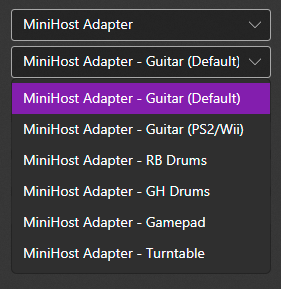
The MiniHost Adapter requires specific presets for specific instruments.
NOTE: CRKD GUITARS REQUIRE SPECIFIC SETTINGS.
MULTIPLATFORM – P3 mode, knob 1
XBOX EDITION – PC mode, knob 8
Guitars can use Default or RB Guitar presets.
- PS2 and Wii will require you to use the RB Guitar preset.
Drums use RB Drums or GH Drums depending on which game is being played.
- Example: Rock Band 2 uses RB Drum preset, while Guitar Hero World Tour uses GH Drums preset.
DJ Hero Turntables use the Turntable preset.
Gamepads use the Gamepad preset.
Click here for a step-by-step programming guide.
To change the preset of your MiniHost Adapter, you must use the RCM Programming Tool. Click here to be taken to the download page.
- Open the RCM Programming Tool.
- Plug your MiniHost Adapter into your computer. You will see it appear with “Configure” and “Reset to factory” buttons.
- Click “Configure“
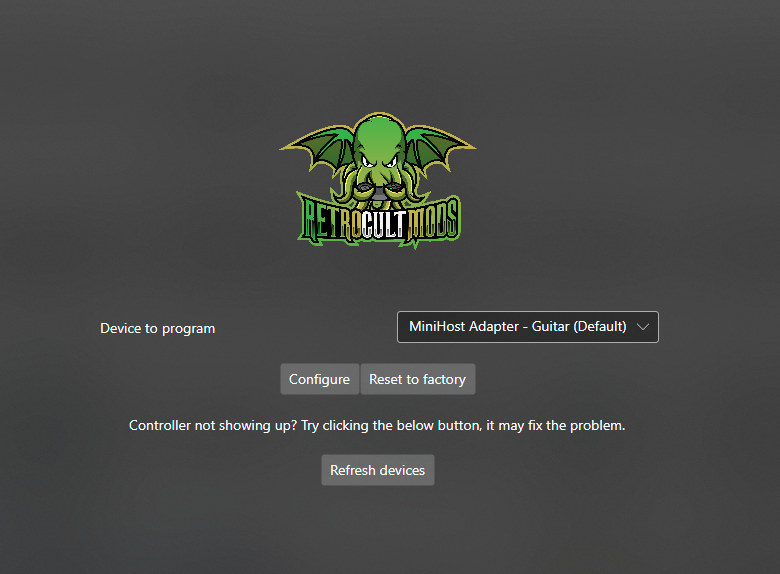
- You will be taken the configuration page where, on the left side, there is a dropdown for you to change presets.
When switching to a different preset, click it, then click “Save Settings”.
- You will want to wait until the bar at the bottom reaches 100% and says Status: Done.

Final notes:
You will need to calibrate some things per instrument. See the following section for more details.
Instrument Setup and Tuning
All controllers tend to need calibration or tweaking of some type. In most cases, it is the tilt or whammy.
Tilt Tuning
Tilt may not work properly until it is calibrated.
Click here for a step-by-step Tilt Tuning guide.
- First, we must open the USB Host Inputs dropdown menu.

- Scroll down to the guitar tilt section. You’ll see this:
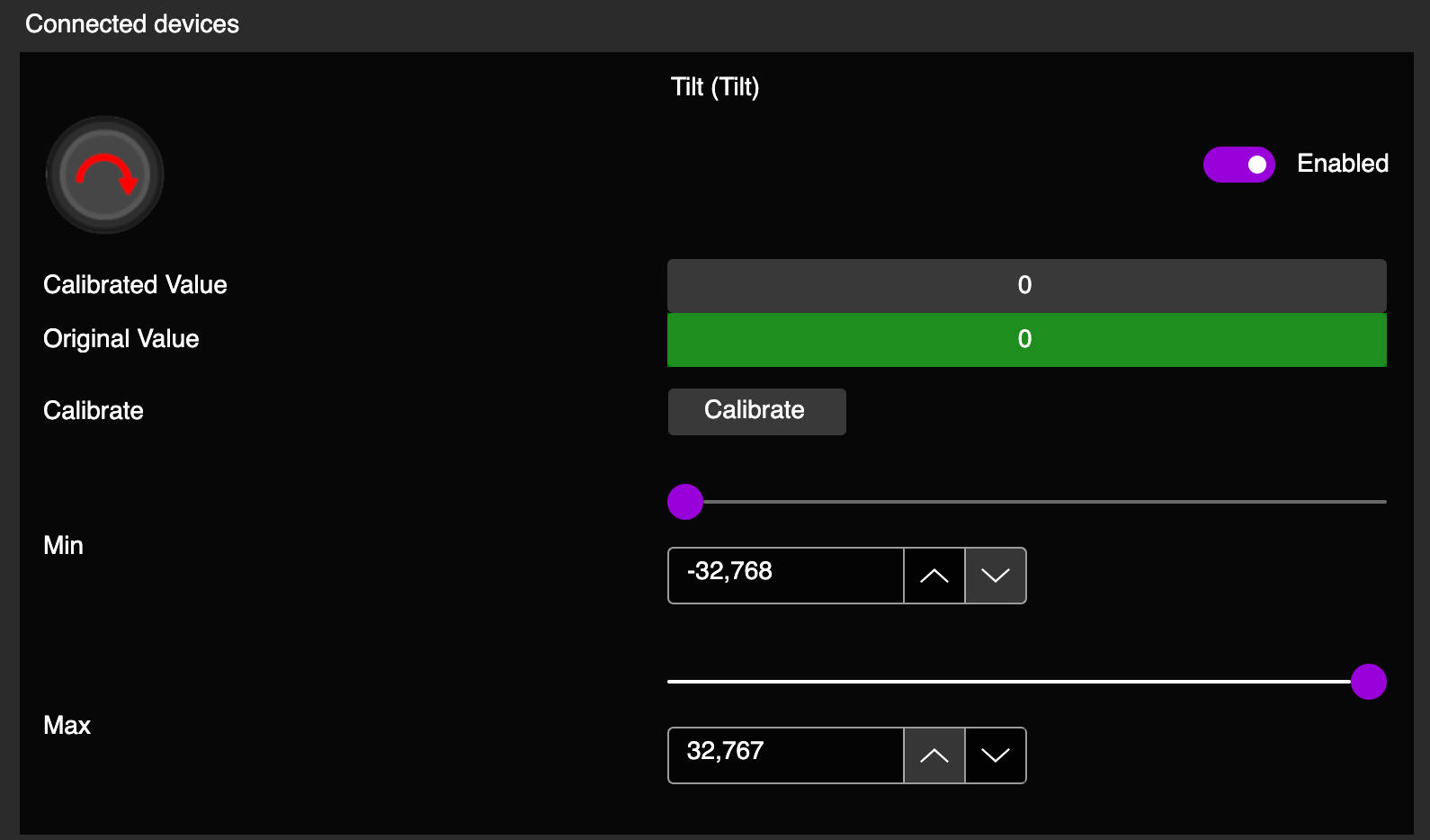
- Click Calibrate!
- Then, position your guitar in the position you play in. Click Next.
- After that, tilt your guitar up to the position you would like tilt to activate. Hold it there and click next.
- You’re done! Click Save Settings on the left side. After it’s done, give it a try! You can recalibrate it to your liking just by clicking Calibrate again.
Whammy Tuning
Whammy motion will not work properly until it is calibrated.
Click here for a step-by-step Whammy Tuning guide.
- First, we must open the USB Host Inputs dropdown menu.
- Scroll down to the guitar whammy section. You’ll see this:

- Click Calibrate!
- Then, don’t touch your whammy bar and then click Next.
- After that, push your whammy bar down as far as it can go without overdoing it. Hold it there, then click Next.
- Now you have to set Deadzone. Push the whammy bar in a little bit and you can see the value go up a little bit. Look for a point where the whammy won’t activate on it’s own. Hold it there, then click Next.
- You’re done! Click Save Settings on the left side. After it’s done, give it a try! You can manually adjust the deadzone with the sliders as well if you’d like to tweak your settings.

Turntable Tuning
Guide coming soon!
Drum Tuning
Usually drums will work great without any tuning, but it can help find the sweet spot for your style of play!
Click here for a step-by-step Drum Tuning guide.
- Before even attempting to play a game, we need to check to see if the MiniHost Adapter is reading inputs from your drum kit. First, plug the MiniHost Adapter into your computer, then open RCM Programming Tool. Once the programming tool detects your adapter, click “Configure“.
- Plug in your drum kit.
- You should see “1 Devices connected” when you plug it in or connect it wirelessly.
- Click the MIDI Inputs dropdown, then start tapping on your drums while looking through the inputs to find if they are appearing. Write down the MIDI number at the top of each input for easy reference.
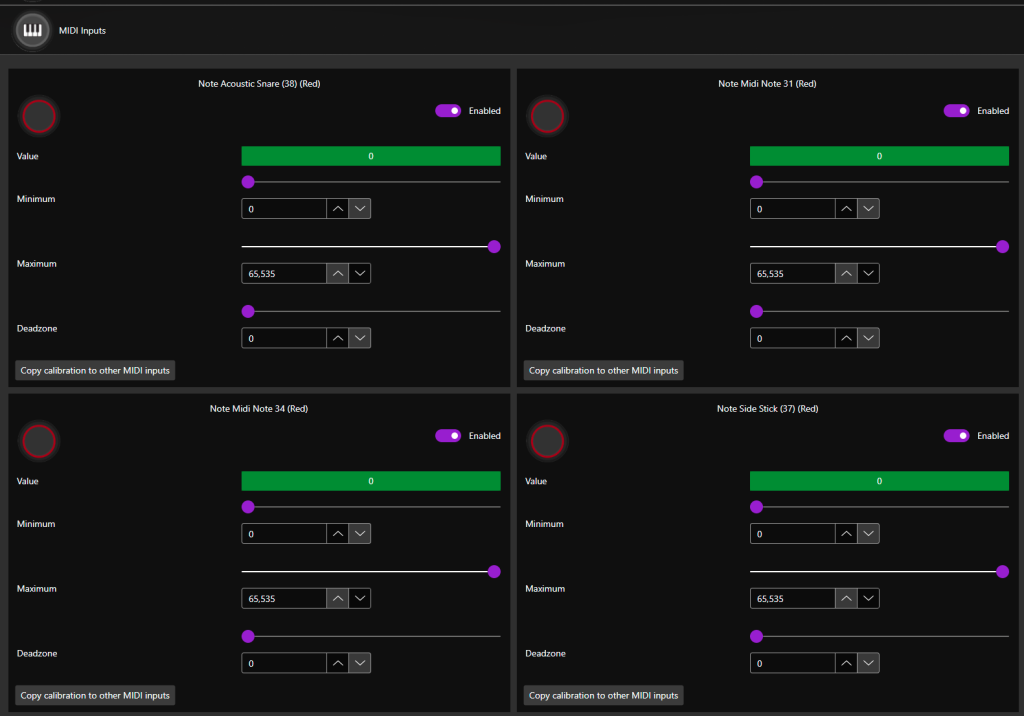
- Once you have your list, go to each input and hit them as hard as you would when normally playing. Raise the MINIMUM to be a few thousand lower than the amount you hit at. This will give a little bit of room for variance in play. DO NOT CHANGE MAXIMUM OR DEADZONE.
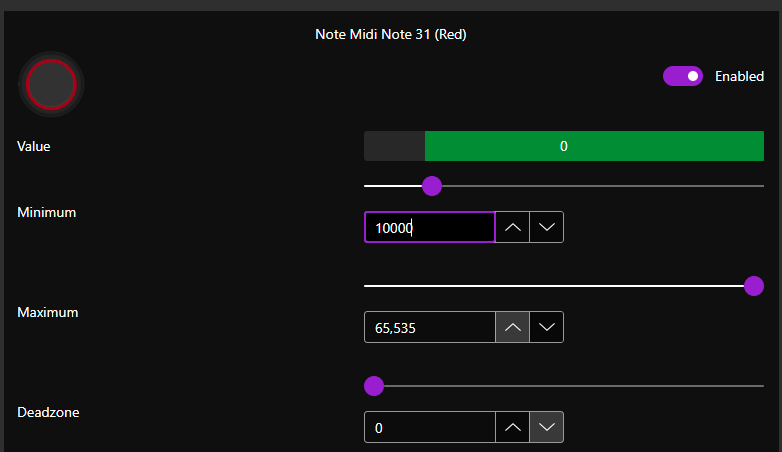
- Once you’ve set up each input, click “Save Settings” on the left side of the window. Once the programming tool has finished writing the firmware, it will show “Status: Done” and 100%. Close the software.
- Load up your favorite game and play! Or plug into your console and play!
Gamepad Thumbstick Tuning (remove drift)
By default, thumbstick deadzones are set to zero. Due to this, all controllers will drift even if brand new.
Click here for a step-by-step Gamepad Thumbstick Tuning guide.
- To use gamepads with the MiniHost Adapter, you must first change the preset to Gamepad. Click here to be taken to the step-by-step programming guide.
- Plug the MiniHost Adapter into your computer if not already, then open RCM Programming Tool. Once the programming tool detects your adapter, click “Configure“.
- Plug in your gamepad. You should see “1 Devices connected” appear.
- Click the USB Host Device dropdown, then scroll to the thumbsticks. There should only be four inputs. X and Y axis for both thumbsticks.
f
- Move both stick around and see the values that they idle at once you release. Adjust the deadzone to be about 500-1000 higher than the idling number. Once you set this, click Save Settings on the left side of the window.
- Optionally, you can set deadzones for triggers if those are experiencing any erratic change in idle value.
Troubleshooting
My MiniHost Adapter is not appearing in the RCM Programming Tool
There are various reasons for this occurring.
Make sure that your adapter is in “D” mode when plugging it in. If it is in “K” mode, the programmer will not see it. Move the switch on the device back to “D”.
Sometimes just unplugging it and plugging it back in will help or restarting the programming tool.
Lastly, you may need to hard reset the device. Holding the reset button (small little button on top of the adapter) while plugging the adapter in will put it into recovery mode, which you can then open the RCM Programming Tool and erase and reset to factory.
If this doesn’t work, send us an email at support@retrocultmods.com